Gahow Wang
445e491123
Gahow Wang
445e491123
third_party/vllm/ now tracked in git for direct patch management.
Based on vLLM v0.18.1 release with one patch applied:

  vllm/v1/core/sched/scheduler.py:
    Replace fatal assert with graceful skip when KV transfer callback
    arrives for an already-aborted request during PD disaggregated serving.

Future vLLM modifications should be made directly in third_party/vllm/
and committed normally. The patches/ directory is kept as documentation
of what changed from upstream.

Co-Authored-By: Claude Opus 4.6 (1M context) <noreply@anthropic.com>
1.7 KiB
1.7 KiB
AnythingLLM
AnythingLLM is a full-stack application that enables you to turn any document, resource, or piece of content into context that any LLM can use as references during chatting.
It allows you to deploy a large language model (LLM) server with vLLM as the backend, which exposes OpenAI-compatible endpoints.
Prerequisites
Set up the vLLM environment:
pip install vllm
Deploy
-
Start the vLLM server with a supported chat-completion model, for example:
vllm serve Qwen/Qwen1.5-32B-Chat-AWQ --max-model-len 4096 -
Download and install AnythingLLM Desktop.
-
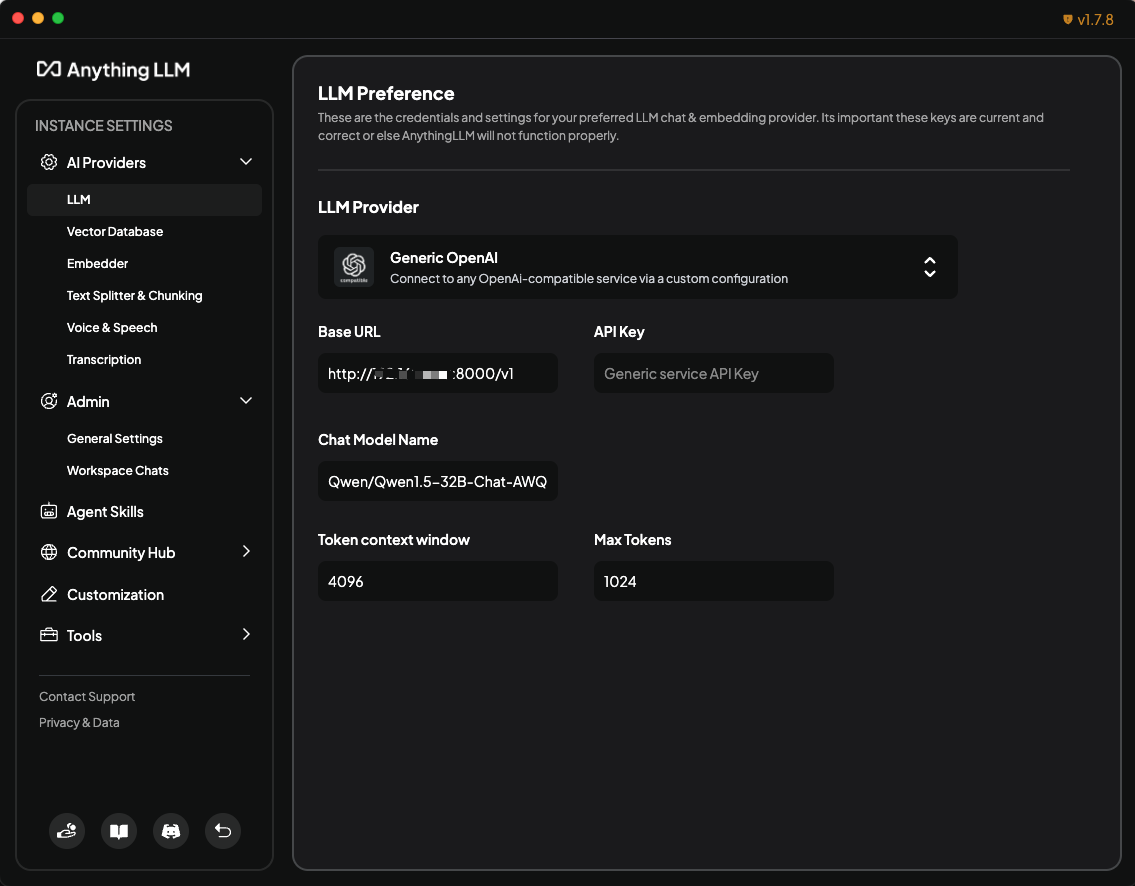
Configure the AI provider:
- At the bottom, click the 🔧 wrench icon -> Open settings -> AI Providers -> LLM.
- Enter the following values:
- LLM Provider: Generic OpenAI
- Base URL:
http://{vllm server host}:{vllm server port}/v1 - Chat Model Name:
Qwen/Qwen1.5-32B-Chat-AWQ
-
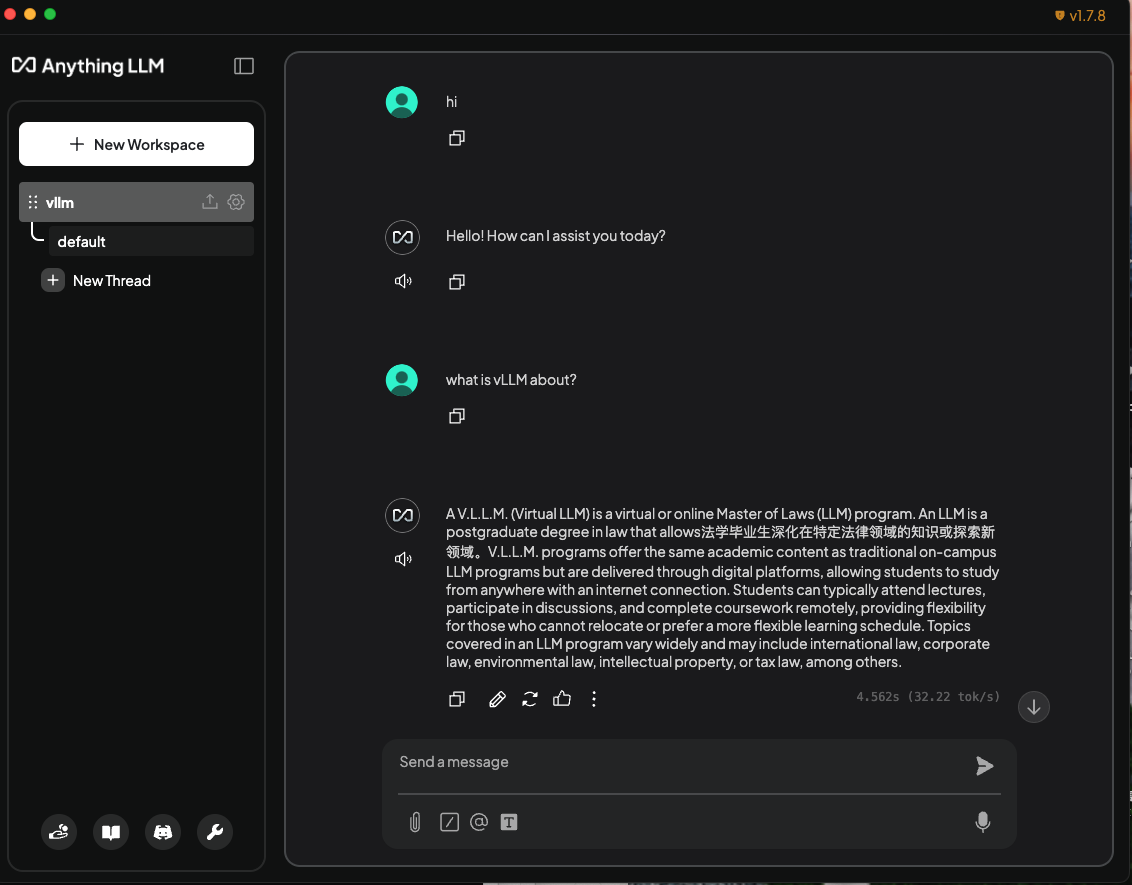
Create a workspace:
- At the bottom, click the ↺ back icon and back to workspaces.
- Create a workspace (e.g.,
vllm) and start chatting.
-
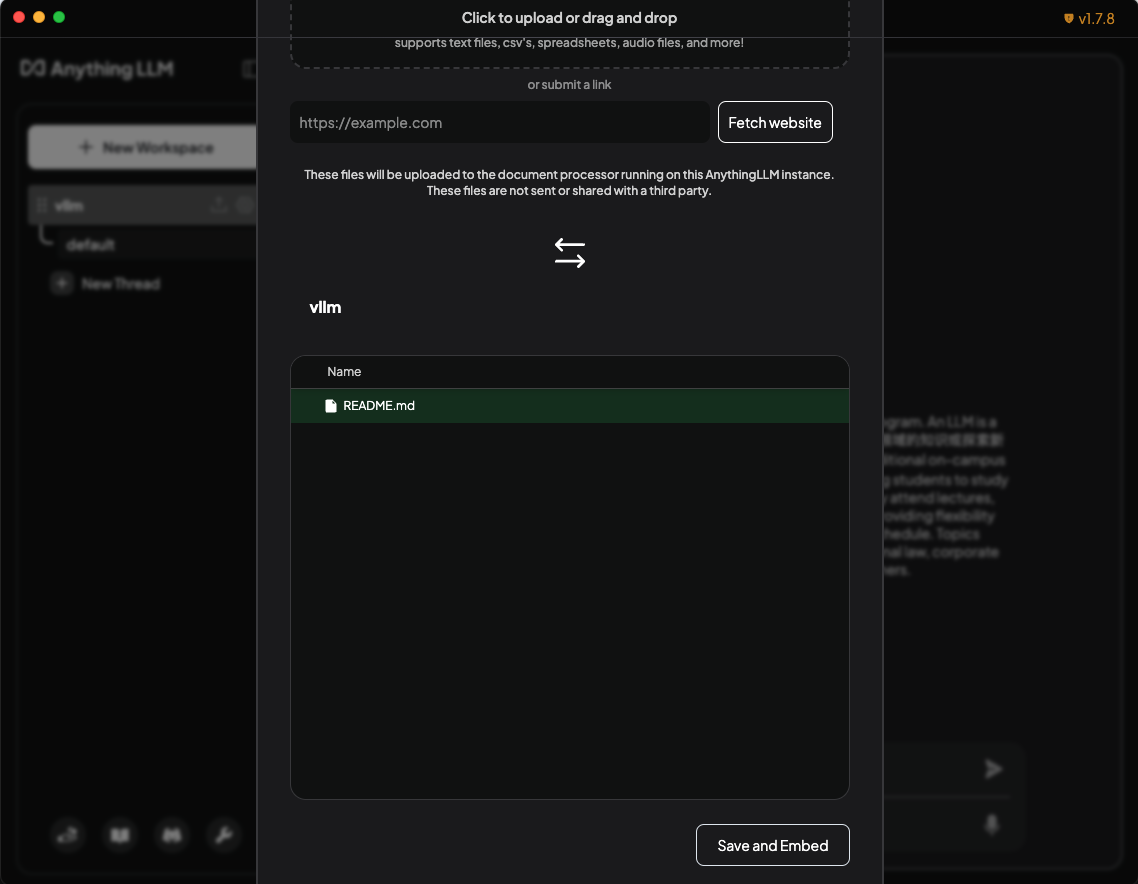
Add a document.
- Click the 📎 attachment icon.
- Upload a document.
- Select and move the document into your workspace.
- Save and embed it.
-
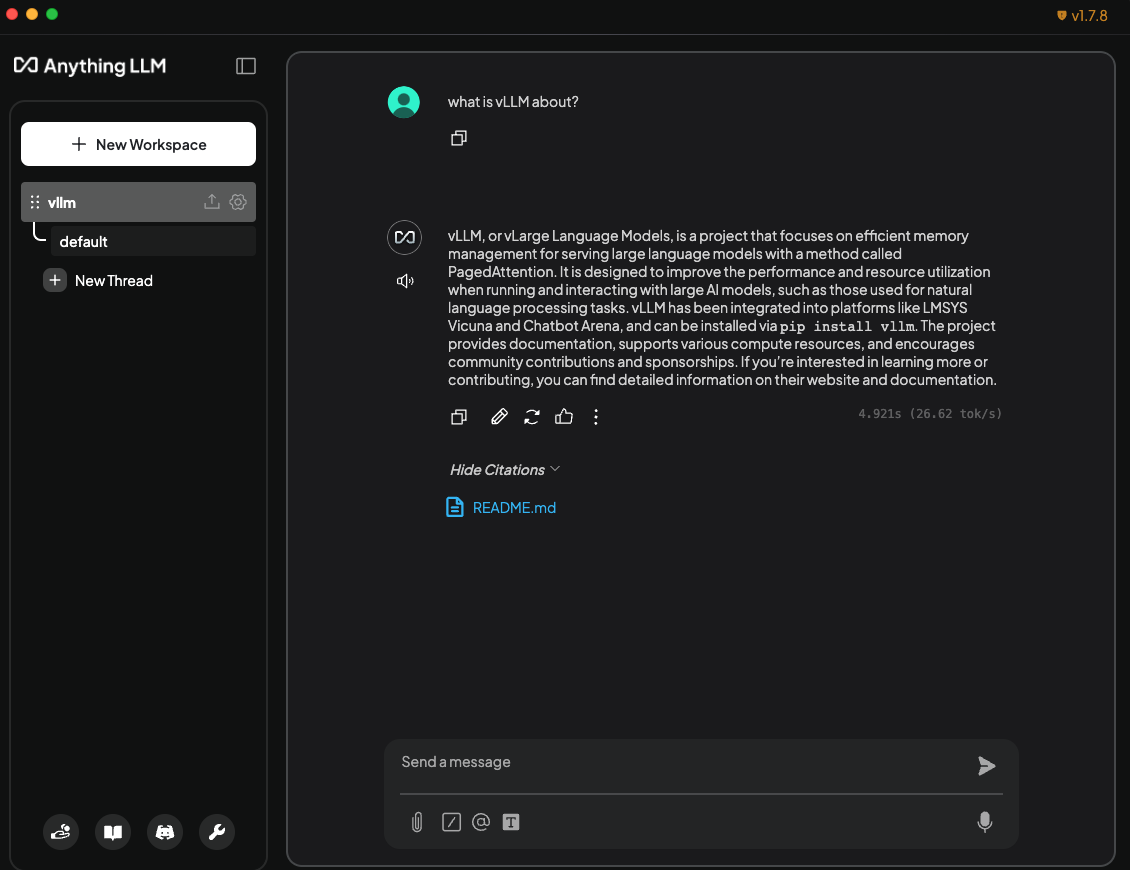
Chat using your document as context.